App Settings
In App Settings > Navigation, you can choose several options.
Sidebar
-
Sources List: Shows a list of all your sources in the sidebar.
-
Single Source: Shows the navigation items for currently selected source in the sidebar. The sidebar also shows any pinned items (if supported by the source type).
Tabs
You can drag and drop to reorder the navigation items shown for each source, and check or uncheck the checkboxes to hide or show each item.
When the sidebar is set to “Sources List”, the items appear as a segmented control near the top of the screen, under the toolbar. When the sidebar is set to “Single Source”, the items appear in the sidebar instead.
View menu
In the View menu, you can customize Radiccio’s appearance to suit your preferences.
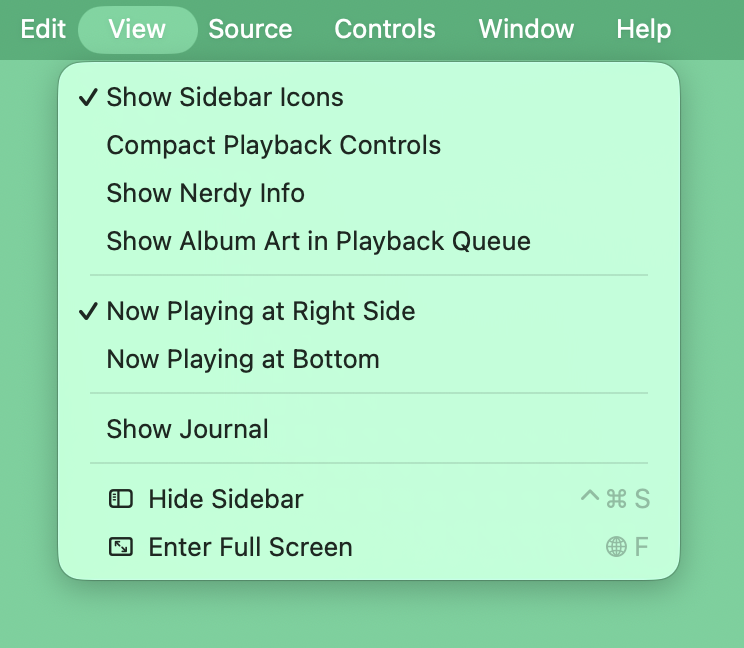
Show Sidebar Icons
By default, Radiccio assigns an icon to each of your sources. You can customize the icon for each source in Source Settings.
You can choose from a handpicked selection of icons from Apple’s beautiful SF Symbols icon set. Or, you can provide your own icon, as a monochrome PNG with transparent background.

If you don’t want to customize the icons, and you also don’t want to see the default icons, you can turn off the icons entirely by toggling View > Show Sidebar Icons.
Compact Playback Controls
This allows you to have a simpler, less cluttered interface, with fewer things on screen. This can be useful if you don’t wish to use all of the corresponding features, or prefer a more minimal appearance.
When this is enabled:
- The stop button is removed
- The play and pause buttons are combined into a single button, which shows play or pause depending on current playback state. (It may appear as a stop button for live streaming audio.)
- The following secondary buttons are removed: back to start of song, favorite, journal, star rating, more menu
Show Nerdy Info
This can show some additional information about the currently playing song, such as audio codec, bitrate, number of channels (stereo, mono or surround), etc.
This information is not always available, depending on the source type and audio format.
Show Album Art in Playback Queue
When enabled, each item in the playback queue displays a small version of the album art in the list.
You may wish to enable this if you frequently listen to compilations or playlists with many different albums.
Now Playing on Right Side
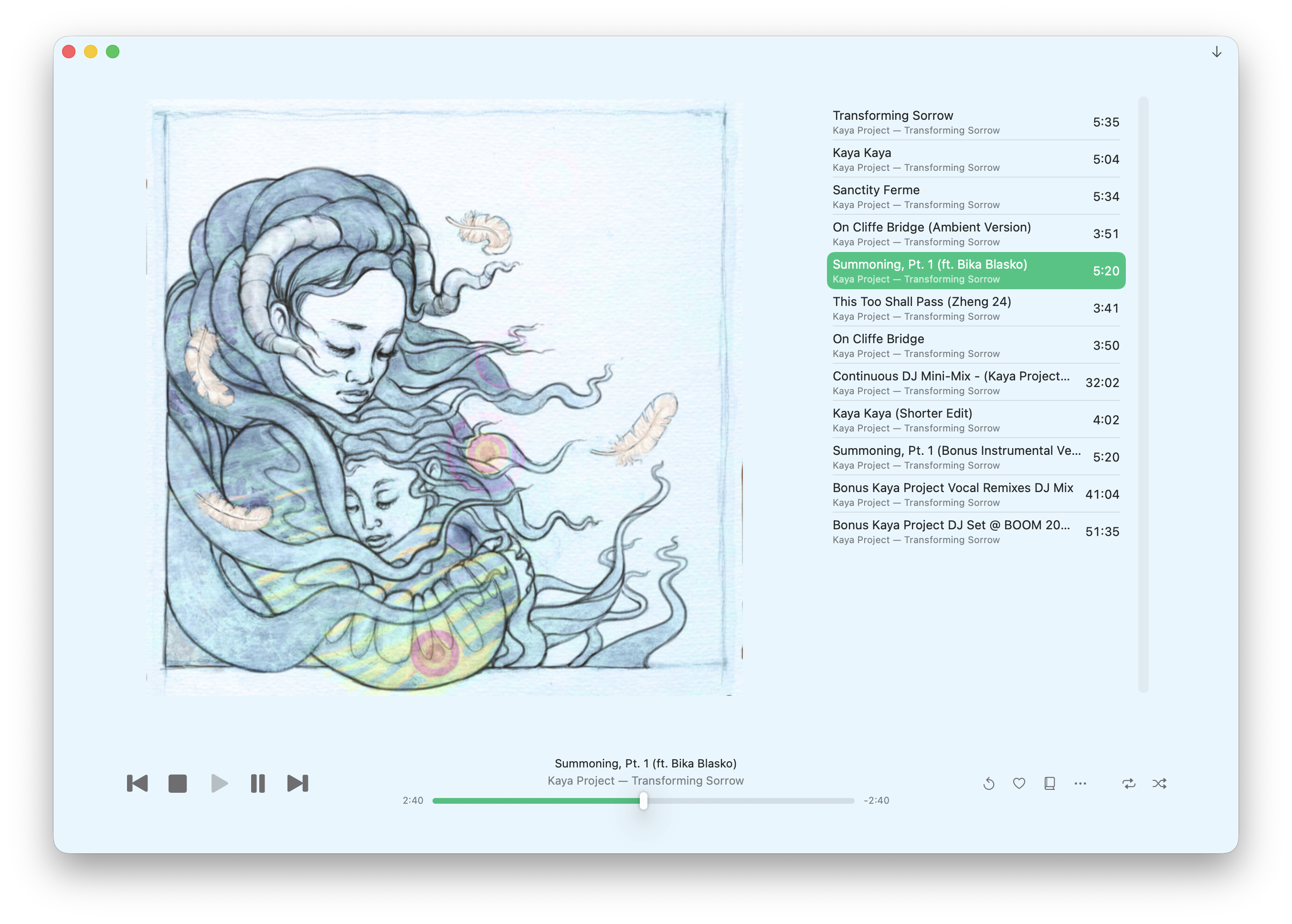
This is the default appearance of Radiccio. It features a large space for displaying the album art of the currently playing song, as well as the playback queue, which is always on screen so you can see what’s playing next at a glance.
You can read more about why we designed Radiccio this way.
Now Playing on Bottom
If you prefer an experience more typical of other desktop music player apps, try toggling this option. The right sidebar will disappear, and you will see a new toolbar at the bottom of the window, which contains the now playing information and controls.
In this mode, the playback queue is not visible on the screen at all times. To view and interact with the queue, click the playback queue button, which is on the right side of the toolbar, all the way at the end. It opens in a popover so you can quickly see what’s next or make changes.
You can also combine this option with Compact Playback Controls for an even more minimal appearance.

Immersive View
Shows a full-screen overlay which replaces the normal UI of the app. This simplified UI shows the currently playing album art as the largest and most prominent element. A simplified playback queue is next to it, with playback controls below.
You can further customize the appearance of this screen with the View menu options as explained above (Compact Playback Controls, Show Nerdy Info, Show Album Art in Playback Queue).
To exit Immersive View, click the downward-pointing arrow in the top right of the window, or from the menu, select View > Exit Immersive View.
Hide Sidebar
You can hide the sidebar entirely.
This can be useful if you only have one source, and therefore have no need to switch between sources.
You may also wish to do this if you have limited screen space available, or simply prefer a more minimal look.
Whether or not the sidebar is hidden, you can also switch sources using the Source menu in the menubar.
Enter Full Screen
Radiccio is designed to work well in full screen mode, if you should so choose.
There is a known issue in which the Source Settings window incorrectly appears overlaid over a black background. We are currently investigating possible solutions to this issue. This is a cosmetic issue and does not affect the functionality, so when you are done, you can close the window as normal.